
Services
Services is where you choose what you sell. Each service is a ready-made way of selling power, with its own rules for pricing, delivery and refunds. You set the prices; the rules come with the service.
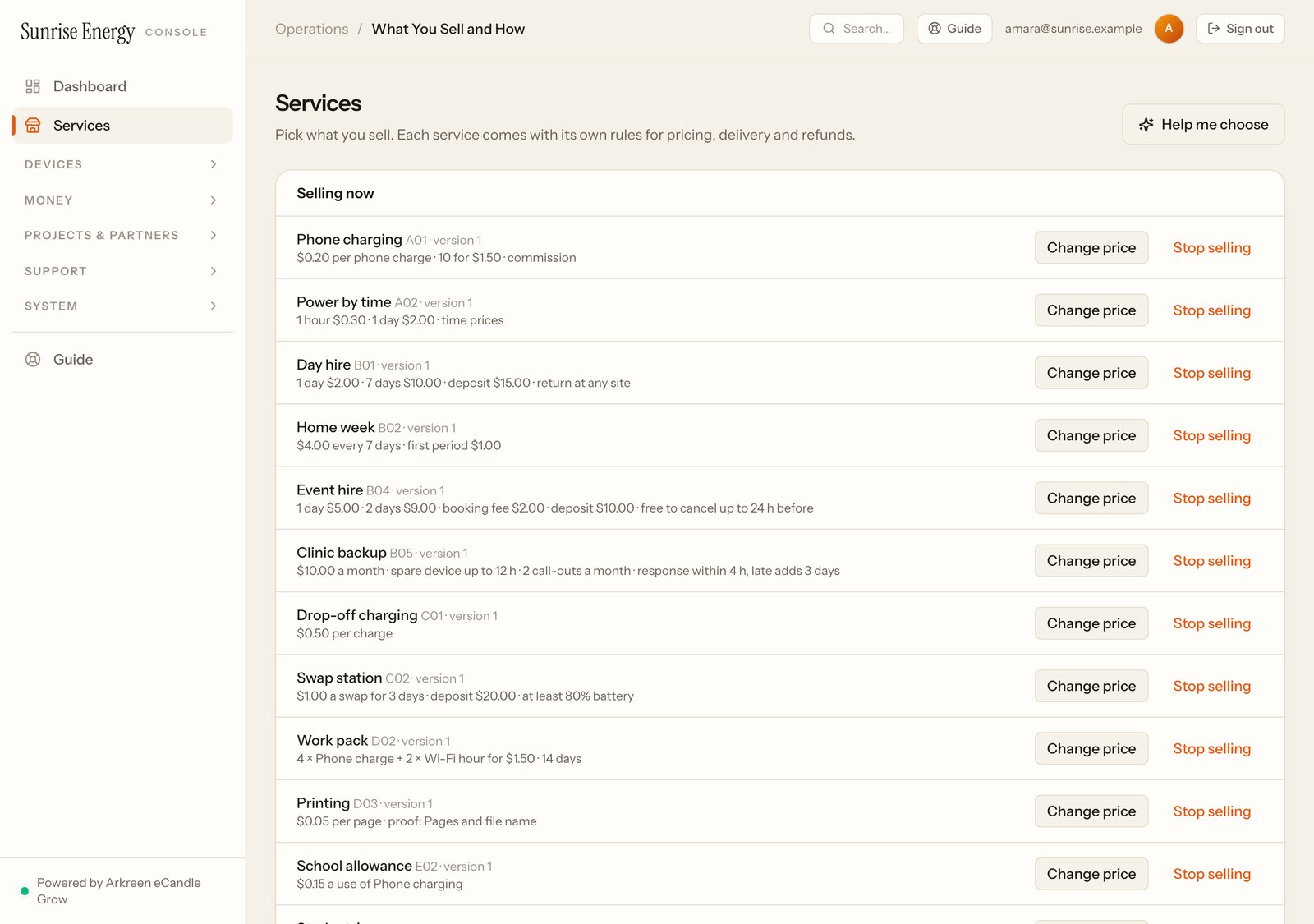
What the labels mean#
| Label | Means |
|---|---|
| Selling# | It's on sale now |
| Ready to sell# | Open it, set your prices and start selling |
| Set up first# | Something is missing, such as your payment wallet, an operator or a device. Open it to see what |
| Not for eCandle 1# | The device can't do this. Open it to see why |
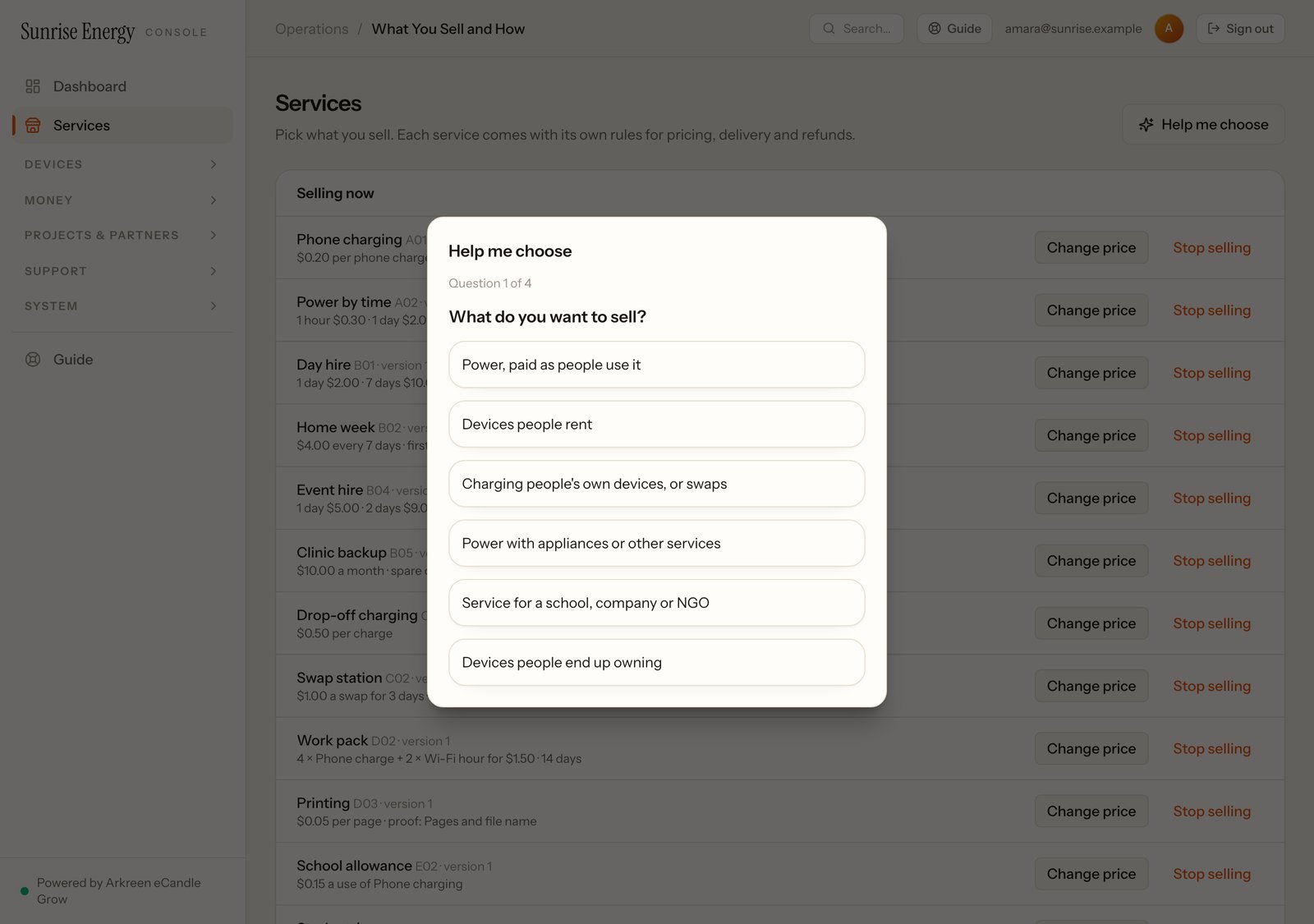
Not sure where to start? Click Help me choose and answer four questions.
Not sure where to start? Click Help me choose and answer four questions about who your customers are and how they like to pay. It suggests the services that fit.
The 20 services#
| Service | Customers buy | How they pay |
|---|---|---|
| A01 Pay per service# | One service on the spot, like a phone charge | Cash to your staff |
| A02 Pay for time# | Power from a device for minutes, hours or days | Scan the sticker and pay online, or cash |
| B01 Short rental# | A whole device for hours, days or weeks, with a deposit | Cash to your staff: rent and deposit |
| B02 Home prepaid# | 7 or 30 days of power for a device at home | Online or cash, one period at a time |
| B03 Shop subscription# | Power for a shop by the week or month | Online or cash, one period at a time |
| B04 Booked rental# | A device for an event or a stall, booked ahead | Cash: a booking fee now, the rest and the deposit on the day |
| B05 Backup cover# | Backup power for named loads, with a spare device when the power goes | Cash, by the month |
| C01 Charging station# | Charging their own phone or device | Cash to your staff |
| C02 Swap for a full one# | Bring back an empty device, take a charged one | Cash: a deposit once, then a fee for each swap |
| C03 Delivery# | A device brought to the door or collected | Cash: a fee by delivery area |
| D01 Power and appliances# | A device with lights, a fan or a radio, rented together | Cash: rent and deposit |
| D02 Service point# | A pack of services, like charging plus Wi-Fi hours | Cash to your staff, for the whole pack |
| D03 Pay per result# | Results you can check, like printed pages | Cash to your staff, per result |
| E01 Multi-site customer# | A school chain or NGO pays one bill for many sites | The customer pays your monthly bill |
| E02 Member allowance# | A school or group pays; its members use an allowance | The group pays you once |
| E03 Community lending# | A co-op or school's members borrow devices in turn | The group pays you for a number of loans |
| E04 Sponsored power# | A sponsor pays part of the price, the customer the rest | Cash from the customer; the sponsor pays you later |
| F01 Pay to own# | A device paid off in instalments, then it's theirs | Online or cash, with an optional down payment |
| F02 Rent, then buy# | Rent a device, with the choice to buy it | Rent by the period; part of the rent counts towards the price |
| F03 Buy with care plan# | The device outright, plus a monthly care plan | Online or cash; the care plan in cash each month |
With Home prepaid and Shop subscription, customers who stop paying lose power but owe nothing. With Pay to own, a late payment shows as late after the grace days.
The catalog also lists five services for reference only: two need metering hardware, and three are engineered projects.
Start selling#
For Home prepaid, Shop subscription and Pay to own, your operators then sign each customer up on Payment plans, on a device set to Payment plans.
Change a price#
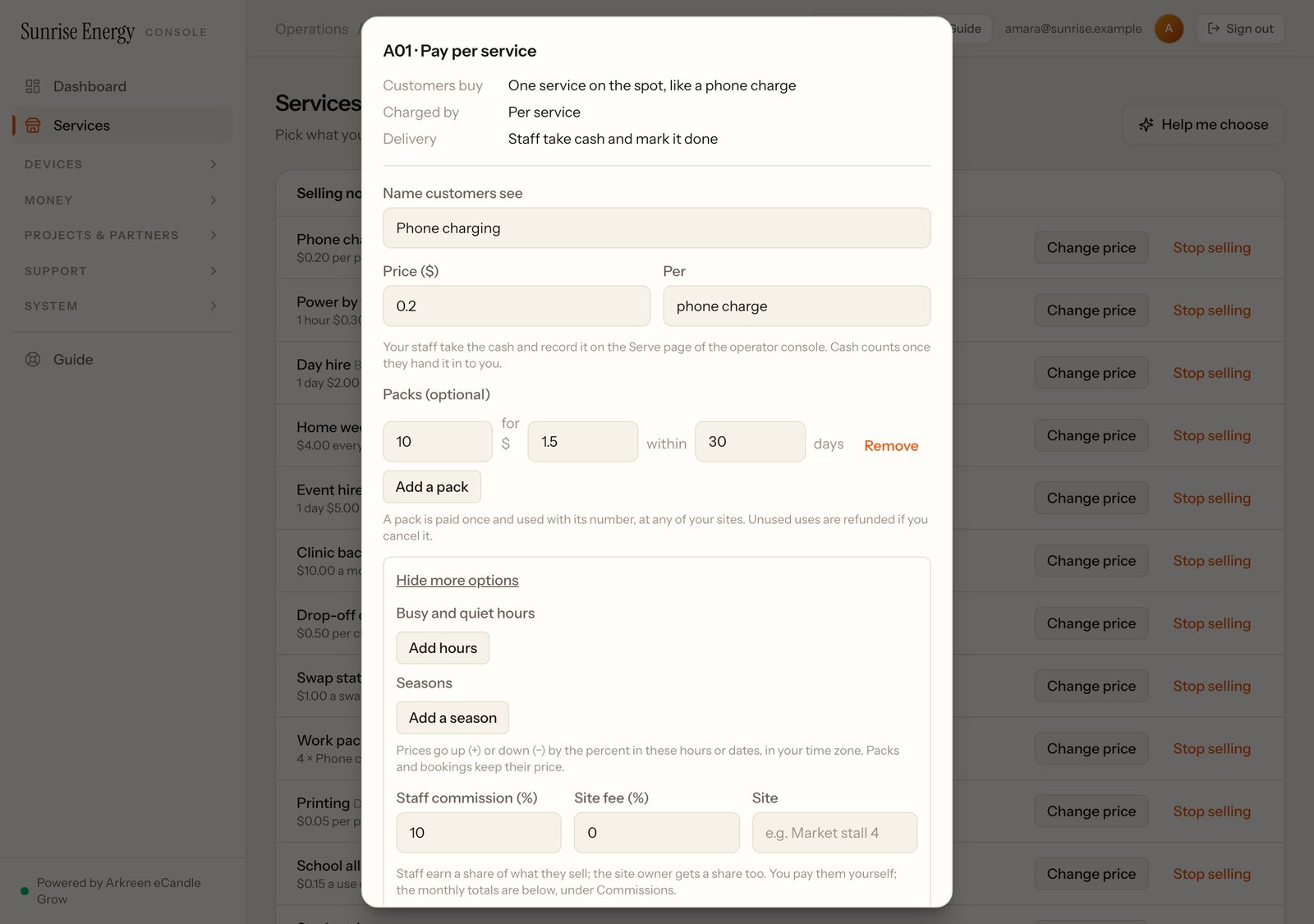
Under Selling now, click Change price, change it and click Publish new price. Sales already made, and plans already signed, keep the old price. Stop selling takes a service off sale.
More options#
These are under More options when you set a price:
- Busy hours and seasons: charge more or less at certain hours or dates, for example +50% from 18:00 to 22:00. Times use your time zone. Works for pay for time, pay per service, charging station, short rental and swaps.#
- Staff commission and site fee: a share of each sale for the staff member who made it, and for the site that hosts your stall. See the monthly totals under Commissions, then pay them yourself.#