
Rentals, bookings and swaps
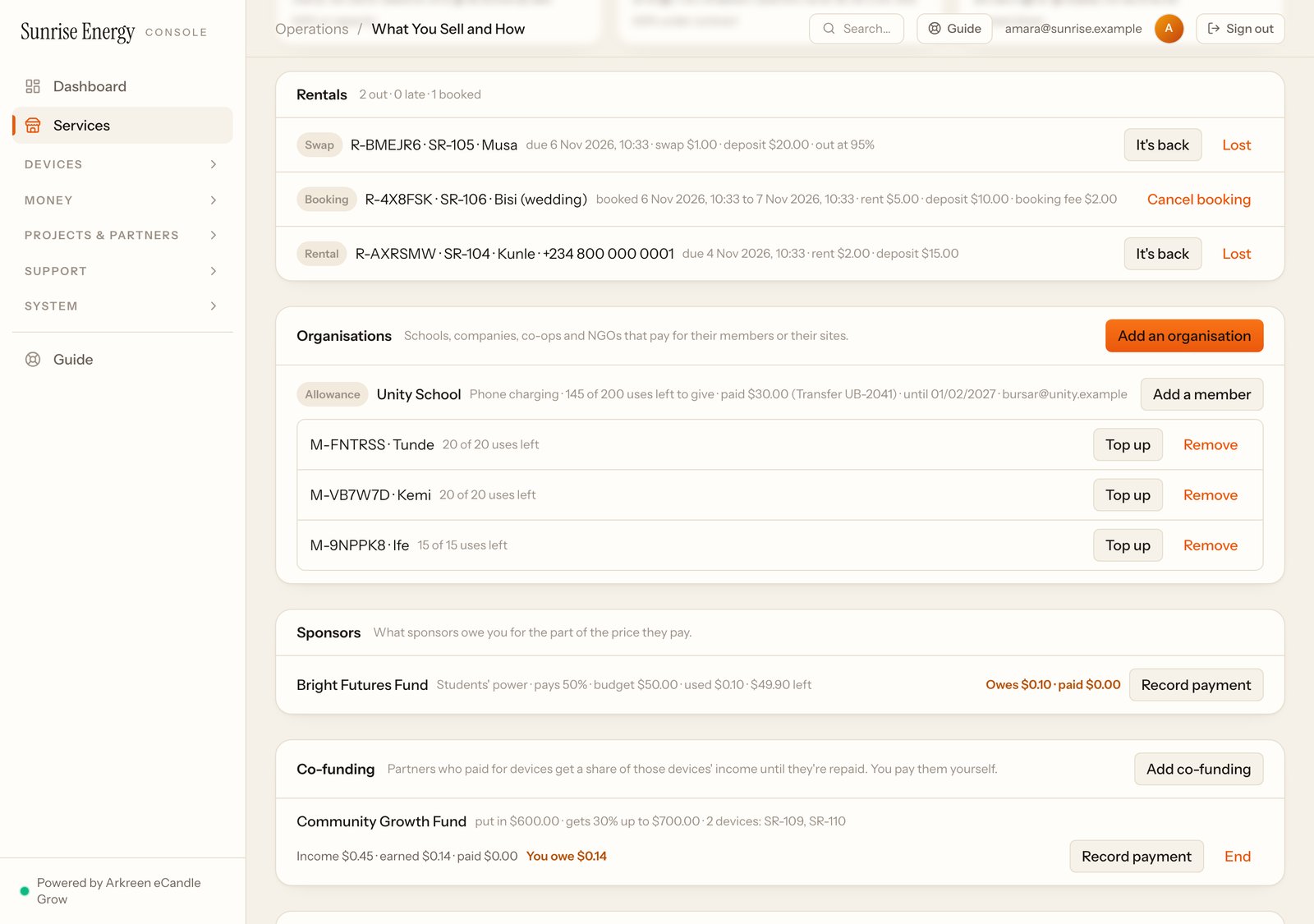
Rent whole devices by the hour, day or week, take bookings for events, run a swap station, rent appliance kits, deliver, and cover clinics and shops with backup power. Rentals show under Rentals on the Services page.
Short rental#
Set the rental lengths and prices, for example 1 day for $2 and 7 days for $10, and the deposit.
- On Serve, staff pick the length and a free device, type the customer's name, take the rent and the deposit in cash, and click I took …. The device turns on for the time paid and switches off when it ends.#
- To give more time, they click Extend and take the cash. The new time adds on to the end.#
- When the device comes back, they click It's back and write anything wrong with it. Then they give the deposit back.#
When a device comes back early, the time left on it is wiped, so the next customer only gets what they paid for. It's wiped the next time the device connects, online or through the App, and always before the next customer's time goes on.
Only devices set to Payment plans that keep time themselves, with no plan signed on them, can be rented out. The rent is handed in with your other cash payments, under the same cash limit. The deposit isn't income. Only the team owner or you can keep part of it, with a reason, or mark a device Lost, which keeps the whole deposit. Kept deposits show under Cash from services.
Booked rental#
Set the booking lengths and prices, the deposit, the booking fee and how many hours before the start customers can cancel for free.
- On Serve, staff pick the length, a device, the date and time and the customer's name, take the booking fee and click I took …. Two bookings can't overlap on the same device, and a short rental can't run into a booking.#
- On the day, from 2 hours before, they click Hand over, take the rest of the price and the deposit. The device turns on.#
- From then on it works like a short rental: Extend, It's back, Lost.#
Cancelled in time, the booking fee goes back to the customer. Cancelled late, or if the customer doesn't come, you keep it; only the team owner or you can refund it then. Kept and used booking fees show under Cash from services.
Swap for a full one#
Set the price of a swap, how long each swap powers the device, the deposit and the lowest battery a device can go out with (80% unless you change it).
- The first time, staff pick a charged device, type the battery % the device shows, take the deposit and the swap fee and click I took ….#
- Next time the customer brings it back, staff check it, click Swap, pick a charged device and take the swap fee. The deposit stays with the customer's swap.#
- When the customer stops, click It's back and give the deposit back.#
Staff can't hand out a device below the lowest battery, or one whose last report was lower.
Power and appliances#
Rent a device with a set of appliances, for example 3 bulbs and a fan. Write each appliance's watts and what it costs to replace; the kit can't draw more than the device gives. When it comes back, staff count each appliance and anything damaged. Missing and damaged items come off the deposit at their replacement cost; only the team owner or you can confirm that.
Delivery and returns at another site#
Set your delivery areas and the fee for each. On Serve, staff pick the area, write the address and take the fee. When it's delivered, they click Delivered and write who took it. A delivery can be for a rental, to drop off or collect the device.
For Short rental, Swap for a full one and Power and appliances, tick Can be returned at another site to let customers bring the device back to any of your sites. Staff there find the rental by its number (R-…) and click It's back.
Backup cover#
For a clinic, shop or office that can't be without power. Set the price per month, which loads are covered, how long a spare device runs each time, how many call-outs a month are included, and how fast you promise to respond.
- On Serve, staff sell the cover for one month or more: customer, address and loads.#
- When the power goes, the customer calls. Staff open a call-out on their cover.#
- Staff go there and click Respond. They can lend a spare device; it turns on for the hours you set.#
- When it's sorted, they click Resolve and write what was done.#
If the response is later than you promised, the customer's cover gets extra days automatically (you set how many). The same call-outs work for Buy with care plan customers, without a spare device.