
Devices and stickers
Devices lists the devices eCandle gave to your company. New devices appear here when eCandle assigns them to you.
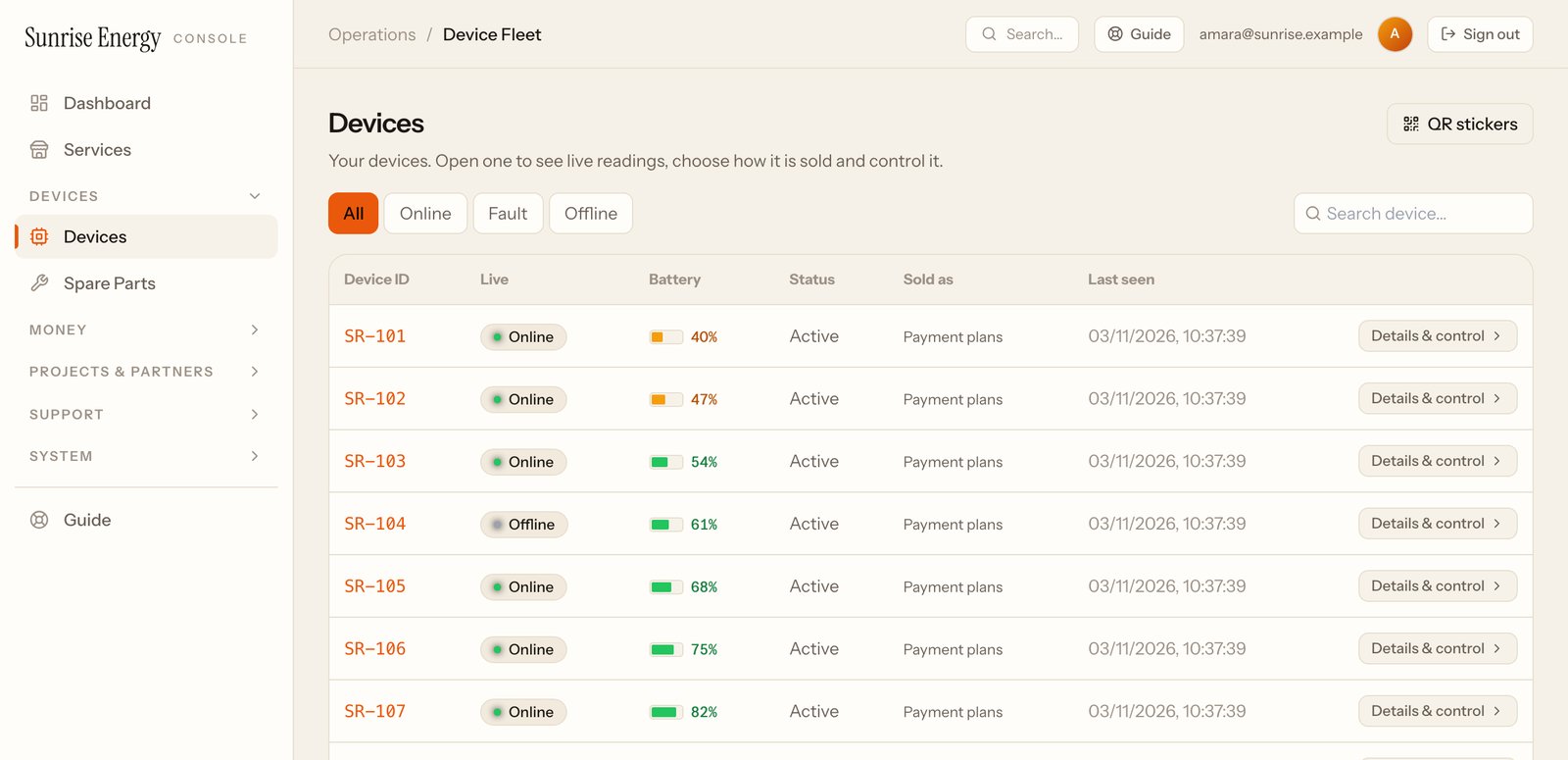
Find a device#
- Use All, Online, Fault and Offline to filter the list.#
- Type part of a device number in Search device….#
- Sold as shows whether the device is on Payment plans or Pay as you go.#
- Click the device number or Details & control to open it.#
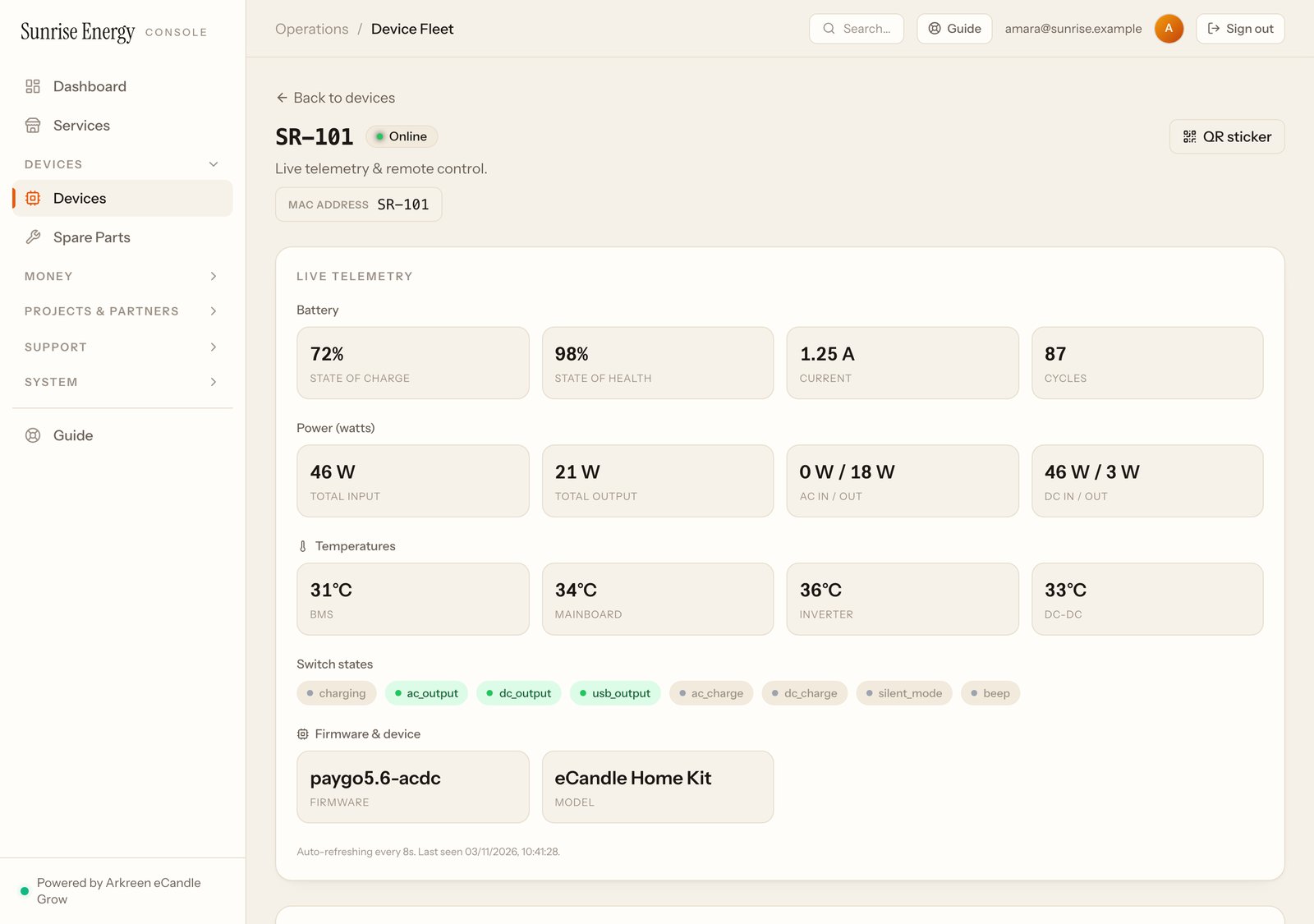
One device#
The top of the device page shows live readings when the device is online: battery, power in and out, and which outputs are on.
Choose how a device is sold#
- Open the device and scroll to Operating model.#
- Pick Payment plans: pay-to-own and rental, or Pay as you go for customers who buy hours of power.#
- Pick the operator who looks after the device.#
- Click Save.#
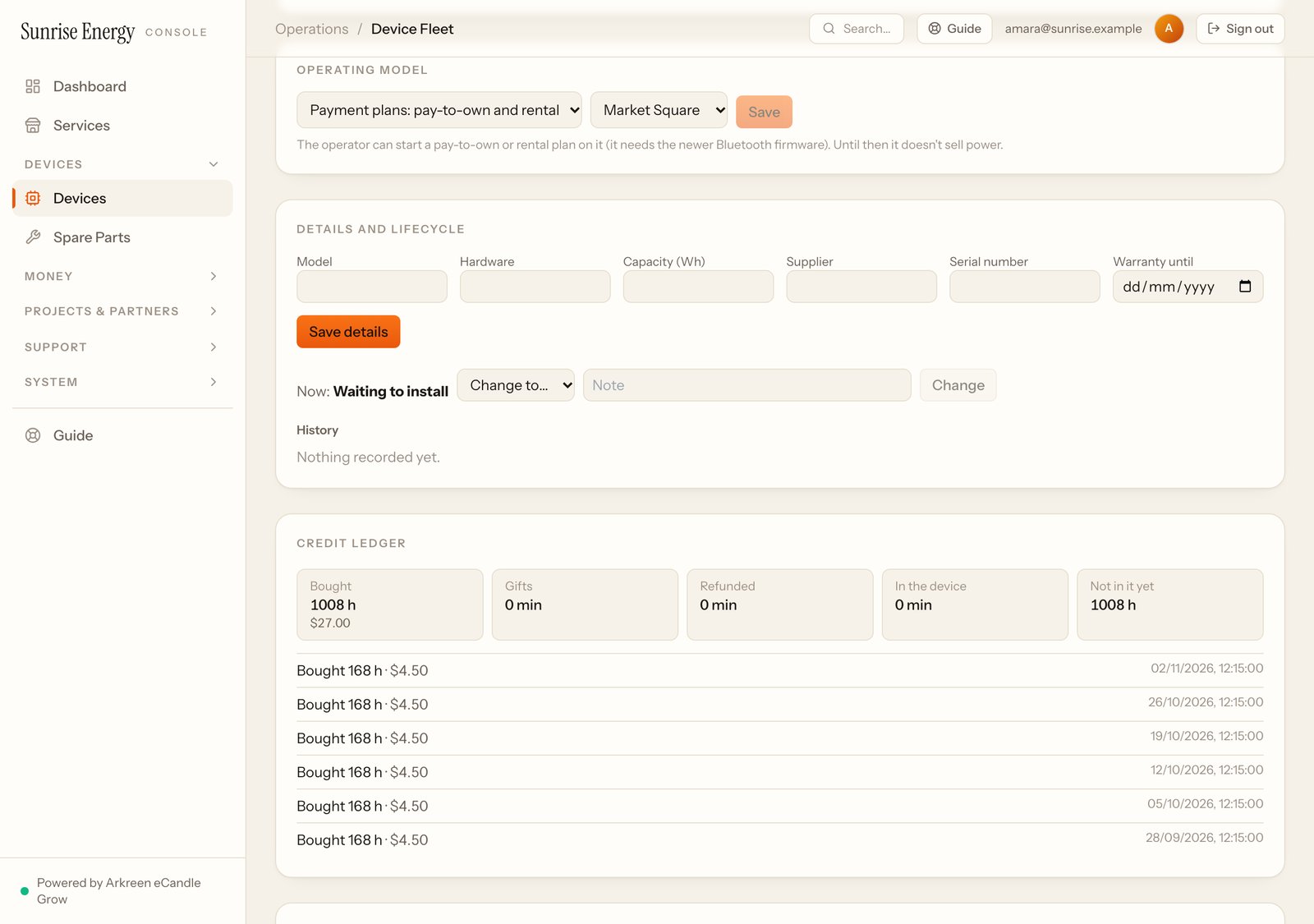
A device must be on Payment plans before an operator can sign a plan on it. The device page also lists the device's credit history and details such as model and warranty date.
Print QR stickers#
Every device needs its sticker. Customers scan it to pay.
- On Devices, click QR stickers. You see a sticker for every device.#
- Click Print and print, or choose Save as PDF in the print window.#
- PNG under a sticker downloads just its QR code, for a print shop.#
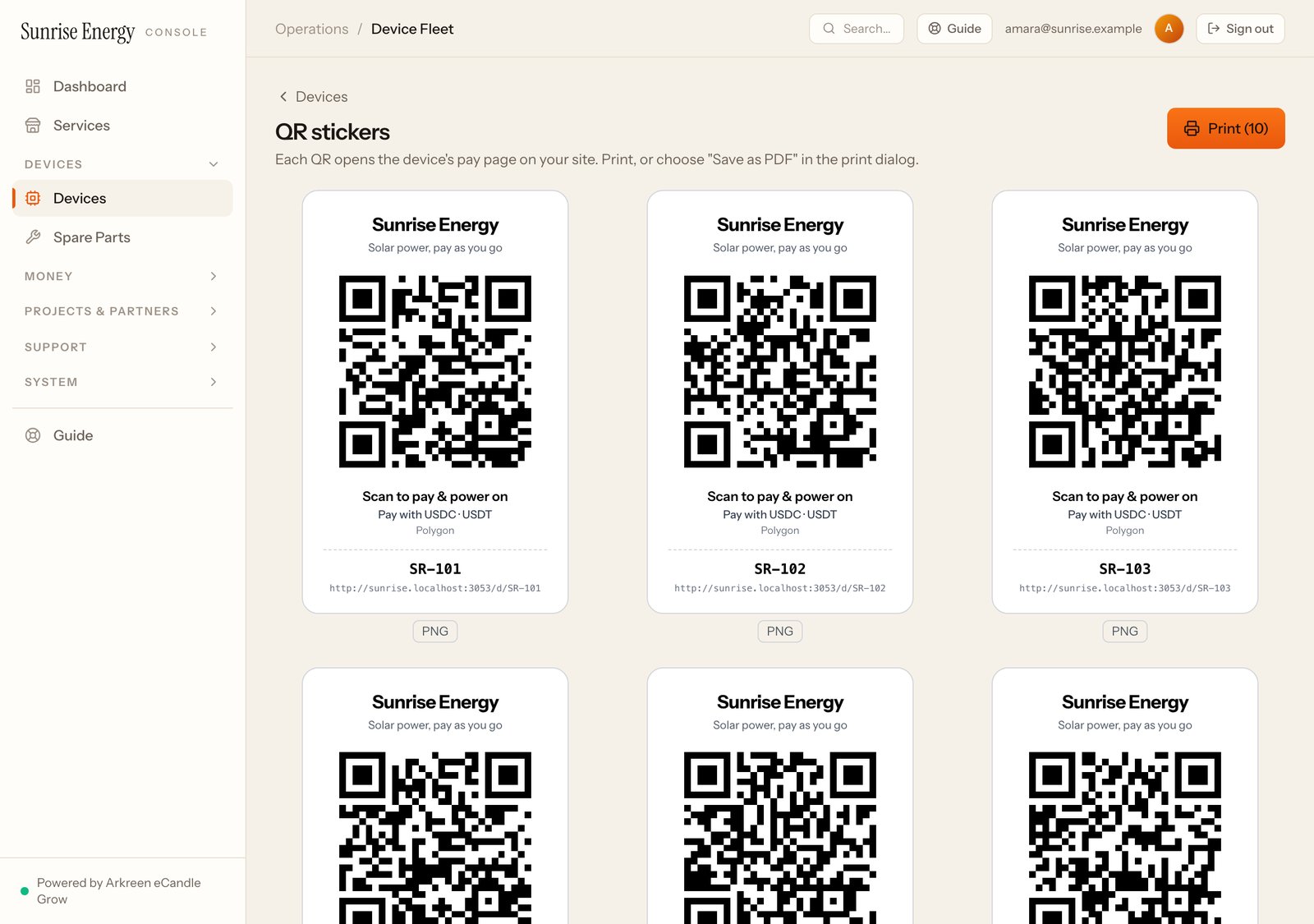
The QR code opens your own payment page, with your company's name. Once printed, a sticker keeps working for the life of the device.